
How to Send WordPress Post Notifications to WhatsApp Automatically
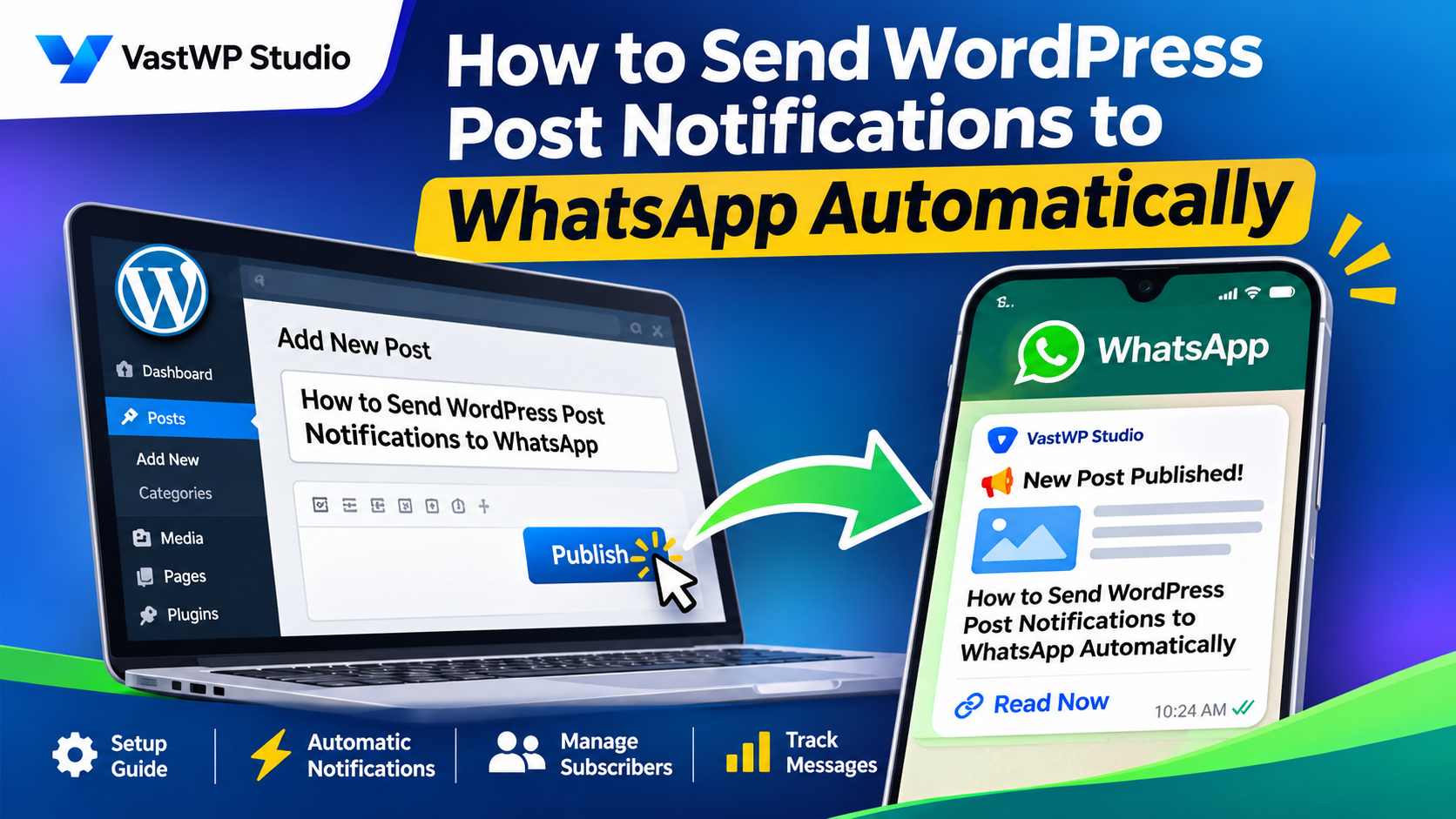
Publishing a new blog post is an important part of running a WordPress website. However, publishing a new article is just the first step. Reaching your audience and making sure they know about your latest content is equally important.. You also need to make sure your readers know when new content is available.
Email newsletters and social media are common ways to share new articles. However, WhatsApp can provide another convenient communication channel for website owners who want to keep their subscribers updated.
In this guide, we’ll explain how to send WordPress post notifications to WhatsApp automatically using the WhatsApp Business Cloud API and a WordPress plugin.
Why Send WordPress Post Notifications to WhatsApp?
Many WordPress websites regularly publish blog posts, news articles, tutorials, announcements, and other updates.
But visitors may not return to your website every day to check for new content.
WhatsApp notifications offer another way to reach people who have chosen to receive updates from your website.
Here are some potential benefits:
- Faster content updates: Notify subscribers when a new article is published.
- Convenient communication: Share updates through a messaging platform many people already use.
- More content visibility: Give subscribers another way to discover your latest articles.
- Automated workflow: Reduce the need to manually send every new post announcement.
- Subscriber management: Maintain a list of people who have opted in to receive notifications.
WhatsApp notifications can be particularly useful for news websites, educational blogs, technology websites, online magazines, and content publishers.
What Is WhatsApp Business Cloud API?
The WhatsApp Business Cloud API, developed by Meta, enables businesses to integrate WhatsApp messaging into their websites, applications, and business workflows, making it easier to communicate with customers through automated and scalable messaging solutions.
It can be used to send approved business message templates, manage messaging workflows, and receive message status updates through webhooks.
For a WordPress website, the Cloud API can be connected through a compatible plugin.
You generally need:
- An active Meta developer account with access to the WhatsApp Business Platform.
- A WhatsApp Business Account (WABA) set up through Meta Business Manager.
- A WhatsApp Business phone number and Phone Number ID.
- An access token with the required permissions to connect your WordPress website to the WhatsApp Business Cloud API.
- An approved WhatsApp message template for the notification workflow.
You should also follow WhatsApp’s messaging policies and obtain appropriate consent from people before sending them notifications.
How to Automatically Send WordPress Posts to WhatsApp
One way to automate this process is by using a WordPress plugin that connects your website to WhatsApp Business Cloud API.
With an appropriate plugin, the workflow can look like this:
- A website administrator creates a new WordPress post.
- The administrator publishes the post.
- The plugin detects the newly published content.
- The plugin prepares a WhatsApp notification using the configured message template.
- The notification is sent to eligible subscribers through WhatsApp Cloud API.
- The plugin records the message response and available delivery information.
This helps website owners share new content without manually preparing and sending every notification.
Introducing WP WhatsApp Notifier by VastWPStudio
WP WhatsApp Notifier is a premium WordPress plugin developed by VastWPStudio to help website owners send automatic WhatsApp notifications when new WordPress content is published.
The plugin connects WordPress with the WhatsApp Business Cloud API and provides tools for subscriber management, notification configuration, and message tracking.
Key Features of WP WhatsApp Notifier
1. WhatsApp Cloud API Integration
Connect your WordPress website to the WhatsApp Business Cloud API using your API configuration.
2. Automatic New Post Notifications
Automatically trigger WhatsApp notifications when new WordPress content is published.
3. Subscriber Management
Manage the WhatsApp subscribers who have opted in to receive your website updates.
4. Message Logs
View notification records, API responses, and message information from the WordPress administration dashboard.
5. Delivery Tracking
Track available message status updates, including sent, delivered, read, and failed events when supported by the WhatsApp webhook configuration.
6. Duplicate Notification Prevention
Help prevent duplicate notifications for the same published post and subscriber.
7. Test API Connection
Use the plugin’s test functionality to check your WhatsApp API configuration and connection.
Watch WP WhatsApp Notifier in Action
Want to see how the plugin works?
Watch our demonstration to understand how WP WhatsApp Notifier connects WordPress publishing with WhatsApp notifications.
Watch the WP WhatsApp Notifier demonstration on YouTube
How to Get Started
Follow these general steps to start using WP WhatsApp Notifier:
Step 1: Prepare Your WhatsApp Business Cloud API
Set up your WhatsApp Business Account through Meta and obtain the required API credentials.
Step 2: Install WP WhatsApp Notifier
After purchasing WP WhatsApp Notifier, download the plugin ZIP file from your account, upload it through the WordPress Plugins section, and activate it to get started.
Step 3: Configure Your API Settings
Enter the required WhatsApp Cloud API credentials, including the appropriate phone number ID, access token, API version, and other configuration details.
Step 4: Configure Your Message Template
Create and obtain approval for a suitable WhatsApp message template. Configure the template and language in the plugin.
Step 5: Manage Your Subscribers
Add or manage subscribers who have given permission to receive WhatsApp notifications from your website.
Step 6: Test Your Connection
Use the plugin’s test functionality to verify that your API configuration is working correctly.
Step 7: Publish a New WordPress Post
After completing the configuration, publish a new post and check the notification workflow and message logs.
Note: Actual setup requirements depend on your Meta account configuration, WhatsApp messaging permissions, approved templates, and plugin settings.
Important WhatsApp Messaging Guidelines
Before sending automated notifications, remember these important points:
- Always obtain explicit consent from individuals before adding their phone numbers to your WhatsApp notification list or sending them automated messages..
- Provide subscribers with an easy-to-access opt-out option, allowing them to withdraw their consent and stop receiving WhatsApp notifications whenever they choose.
- Use approved message templates where required by WhatsApp’s policies.
- Follow applicable WhatsApp messaging rules and Meta’s business messaging policies.
- Avoid sending unwanted or excessive notifications.
Responsible messaging helps build trust with your subscribers.
Who Can Benefit from WhatsApp Post Notifications?
WP WhatsApp Notifier may be useful for different types of WordPress websites.
News and Media Websites: Share newly published news articles with subscribers.
Educational Websites: Notify interested subscribers about newly published educational content and announcements.
Technology Blogs: Share new tutorials, technology updates, and product articles.
Business Websites: Keep opted-in audiences informed about new company articles and announcements.
Online Publishers: Add WhatsApp notifications as another channel for distributing newly published content.
Frequently Asked Questions
1. Can WordPress automatically send notifications to WhatsApp?
Yes. A compatible WordPress plugin connected to WhatsApp Business Cloud API can trigger notifications when new content is published, subject to the required configuration and messaging rules.
2. Do I need WhatsApp Business Cloud API?
Yes. WP WhatsApp Notifier is designed to connect with WhatsApp Business Cloud API. You need the required Meta account setup and API credentials.
3. Can I manage WhatsApp subscribers from WordPress?
Yes. WP WhatsApp Notifier includes subscriber management functionality to help you manage your notification audience.
4. Can I track WhatsApp message delivery?
The plugin includes message logs and delivery tracking features. Available status information depends on the WhatsApp API responses and webhook configuration.
5. Does WP WhatsApp Notifier automatically send WhatsApp notifications whenever a new WordPress post is published?
Yes. Automatic new-content notifications are one of the main features of WP WhatsApp Notifier.
6. Is WP WhatsApp Notifier suitable for news websites?
It can be useful for news publishers and other content-driven websites that want to notify opted-in subscribers when new WordPress posts are published.
Get WP WhatsApp Notifier for Your WordPress Website
Want to simplify your WordPress publishing workflow and keep your subscribers informed automatically?
WP WhatsApp Notifier helps connect your WordPress website with WhatsApp Business Cloud API so you can automatically notify subscribers about newly published content.
Explore the plugin, view its features, and see how it can support your website’s content notification workflow.
Visit VastWPStudio:
Developed by VastWPStudio
WordPress Plugins | Tutorials | Website Solutions